


I am a long time book lover. I found it is a great experience switch between reading an eBook on Kindle and listening to the audiobook on my iPhone with the WhisperSync for Voice. I wanna know if it is possible to play Audible audiobooks on my Kindle PaperWhite directly as I don't want to use two devices together. Thanks.
-- Users From Reddit
Besides reading, more and more users prefer to listen to Audible books due to the fast-paced life of modern society. They don't have to spare any special time but just do that while doing the dishes, waiting for a bus. Kindle is a well-known e-reader with an outstanding reading experience. So, is it possible to listen to Audible on Kindle? If you want to know how, just follow this article.

Part 1. Can You Use Audible on Kindle?
Yes, you can absolutely listen to Audible books on your Kindle! How you do it just depends on which type of Kindle you have.
Kindle Fire Tablets:
Audible works on full-color Kindle Fire tablets, like the Fire HD or Fire Max. These are like a mobile phone or an iPad. You just install the regular Audible App directly from the Appstore, and you're ready to listen.
Modern Kindle E-readers:
Devices with e-ink screens, like the Kindle Basic, Paperwhite, Oasis, and Scribe, are mainly for reading text, so they can't run the full Audible app. They have Audible built right into the system. You connect Bluetooth headphones or speakers to the Kindle, and you can play the audiobooks directly. No app needed!
Legacy Kindle E-readers:
Older models, like the Kindle Keyboard, Touch, or DX, have plugs for headphones, but they can't connect to Audible over the internet. This is complicated. You have to manually transfer the audiobook from your computer to the Kindle using a special program called Audible Manager.
In the following, we'll show you how to use Audible on all kinds of Kindle devices. Keep reading!
Part 2. How to Listen to Audible on Kindle Fire Tablets
Currently, the Audible app is seamlessly integrated with the majority of Fire Tablet models, so there's no need for manual download or installation from external sources or the Google Play Store; it comes preinstalled in your Kindle Fire Tablet's app collection.
Which Kindle Fire Tablets are compatible with the Audible app?
All Fire Tablet models are compatible with Audible via the Amazon Appstore, including the Fire 7, Fire HD 8, Fire HD 10, and the Fire Max 11.
How can you listen to Audible on Kindle Fire Tablets online and offline?
Step 1Find or Download the Audible App
Look for the Audible app icon on your home screen or in your app library. Note: On some older Fire Tablets, swipe to the Library or Books tab, and look for a section or filter called "Audiobooks" or "Audible."
If the app isn't there:
Open the Amazon Appstore.
Search for "Audible."
Tap the app and select Download.

Step 2Sign In to Audible
Open the Audible app. Sign in using your Audible account.
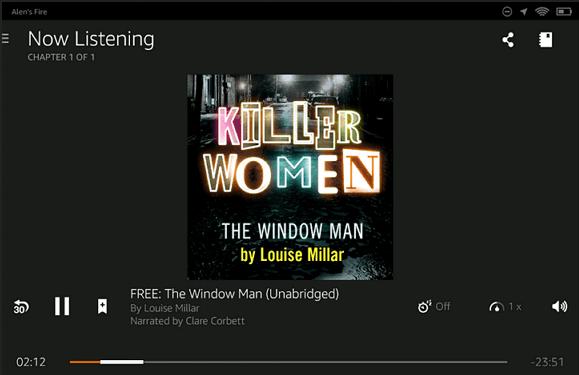
Step 3Find and Play Your Audiobooks
Go to the Library tab.
You'll see all the titles you've purchased and the Audible Plus titles.
Tap the title you want to listen to.
To listen offline, tap the download icon on the cover.
Once downloaded, you can listen without the internet.
Read More : 3 Ways to Listen to Audible on Kindle Fire Tablets [Full Guide]
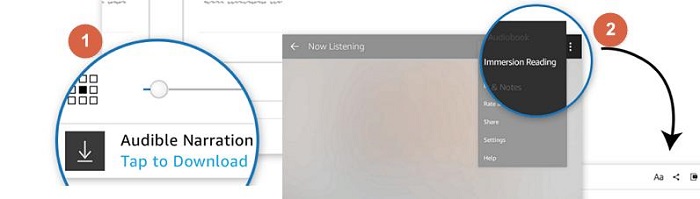
If you own both the Kindle eBook and Audible audiobook of the same title, you can read the Kindle book with the audiobook playing at the same time:
- Open the book in your Kindle app instead of the Audible app.
- Tap the headphone icon or Play button at the bottom of the screen.
- This downloads the narration, and unlocks the Immersion Reading feature, which highlights text in real-time as it is read aloud, letting you read and listen at the same time.
Part 3. How to Get Audible on Kindle Paperwhite/Oasis/Scribe
Unlike a Fire Tablet or a smartphone, e-ink Kindles cannot download the Audible app or any other apps because they are made for reading e-books. These e-readers don't have built-in speakers or headphone jacks, but they do support Audible audio through Bluetooth.
Which Kindle e-readers support Audible?
- Kindle Paperwhite: 10th Generation and newer (including Signature Edition)
- Kindle Oasis: 8th, 9th and 10th Generation
- Kindle Scribe: All models
- Kindle Colorsoft: All models
- Basic Kindle: 8th Generation and later
How do you listen to Audible audiobooks on Kindle e-readers?
Step 1Connect a Bluetooth Audio Device
From the Home screen, tap the Settings gear icon or swipe down from the top and tap All Settings.
Tap Wi-Fi & Bluetooth and make sure Bluetooth is turned on.
Tap Bluetooth Devices.
Put your Bluetooth headphones or speaker in pairing mode.
Your Kindle will scan for nearby devices. Select your device from the list to connect.

Step 2Access Your Audiobooks
Tap the Library icon on the home screen.
Use the Filter or All dropdown menu and select Audible. This shows all audiobooks linked to your Amazon account.
Step 3Start Listening
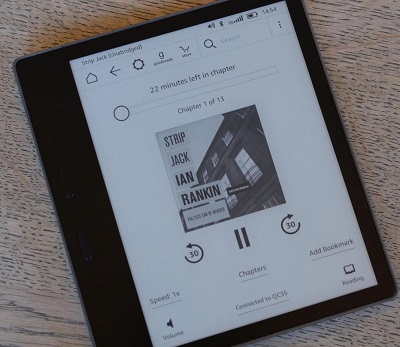
Find the book you want to play. Tap on the book cover. This opens the dedicated, simplified Audible player.
In the player, tap the Play button to start listening.
Use the on-screen controls to play, pause, skip, or set a sleep timer.
To download the book for offline listening, tap the Download icon on the cover. Once downloaded, the icon disappears, and you can play the book offline.
Important Note: Your listening progress is automatically synced between your E-reader, Fire Tablet, smartphone app, and Echo devices via Whispersync for voice, if this feature is enabled in your Amazon's Manage Your Content and Devices page, so you never lose your place when switching devices.
Part 4. How to Play Audible on Kindle Keyboard/Touch/DX
The Kindle Keyboard (3rd Gen), Kindle Touch (4th Gen), and Kindle DX were the last E-Ink Kindles with a 3.5mm headphone jack. These models could play Audible books through wired audio. In the past, you had to use a computer program called Audible Manager to set things up. It managed your Audible library and allowed you to authorize your Kindle. After that, you would choose "Download & Transfer via USB" on your Amazon account, download the .aax file, and copy it to your Kindle with a USB cable.
Audible Manager is no longer supported by Amazon or Audible. The USB-transfer option for Audible books has been removed for most users. Even if you still have Audible Manager on your computer, it no longer works with today's Audible files. You cannot drag and drop new .aax files because the program cannot open DRM-protected books or authorize your Kindle anymore.
Solution: Use ViWizard Audible Audiobook Converter
To put Audible books on a Kindle Keyboard, Kindle Touch, or Kindle DX, you can remove the Audible DRM and convert the books to MP3. All of these older Kindles support MP3, so this method works well. The easiest way to do this is by using ViWizard Audible Converter.
Why choose ViWizard? It can download all your Audible content like purchased titles, Plus titles, and free listens, and convert them to MP3, M4A, M4B, FLAC, WAV, or AIFF. It works at up to 100x speed and keeps the chapters, metadata, and audio quality. Once the books are converted, you'll have simple MP3 files. These files are not limited by Amazon, so you can move them to your Kindle with a USB cable.

Key Features of ViWizard Audible Audiobook Converter
Free Trial Free Trial* Security verified. 5,481,347 people have downloaded it.
- Convert Audible audiobooks without AA/AAX format limitations
- Export audiobooks in 6 formats for different devices and players
- Split audiobooks by chapters or sections for personalized listening
- Preserve chapter information and metadata when creating collections
- Manage Audible audiobook libraries across converted files
Below is how to use ViWizard to download Audible books as MP3 files and play them on older Kindle models:
Step 1Access Audible Library in ViWizard
Install and open ViWizard Audible Audiobook Converter on your computer. The built-in Audible web player will show up. Click Sign In and enter your Audible account details. Your information is safe. This only allows the program to load audiobooks in your library.

Step 2Set Output Format to MP3
Open Preferences from the menu. Go to the Conversion tab. Set the output format to MP3, which works best with older Kindle models. You can adjust the audio settings and choose where to save the files. Click OK when you finish.

Step 3Select Audible Books for Conversion
Open your Audible library in the web player. Click the plus (+) icon to load all your Audible books. A window will pop up. Pick the titles you want to convert or select all audiobook titles at once. Click Add to List to prepare them.

Step 4Convert Your Audible Audiobooks to MP3
Click Convert to start. ViWizard works very fast, even with long audiobooks, so you won't wait long. When the conversion ends, click the folder icon beside a title to open the location of your new MP3 files.

Step 5 Transfer the Converted Files to Your Kindle
Connect your Kindle Keyboard, Touch, or DX to your computer with a micro-USB cable. Open the Kindle drive and find the music folder. Drag your MP3 files into this folder. When you're done, safely eject the Kindle.
Step 6 Play Audible MP3 Files on the Kindle
On your Kindle, go to the Home screen and press Menu. Choose Experimental. Look for Play MP3. This will start playing the MP3 versions of your audiobooks in the background. Simply plug in a 3.5mm headphone jack to listen. You can use these shortcuts on the Kindle Keyboard or DX:
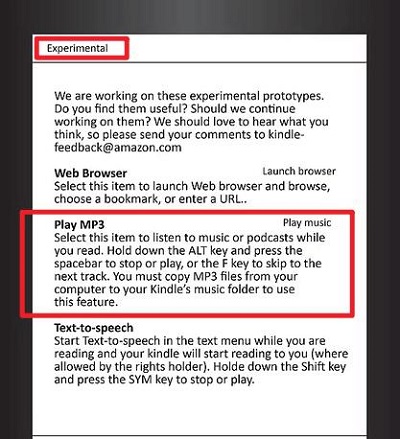
- Alt + P: Play/Pause
- Alt + Spacebar: Stop
- Alt + F: Next Track
- Alt + B: Previous Track
Part 5. FAQs about Audible on Kindles
Which Kindle models completely lack audio capabilities?
The following E Ink Kindle models are completely silent and lack speakers, headphone jack, and Bluetooth audio support. That means these devices cannot play Audible audiobooks or any other audio files:
- Kindle 4th Generation (2011)
- Kindle 5th Generation (2012)
- Kindle Paperwhite 1st Generation (2012)
- Kindle Paperwhite 2nd Generation (2013)
- Kindle Paperwhite 3rd Generation (2015)
Why can't I see my Audible Plus Catalog books in my Kindle Paperwhite library?
Audible Plus Catalog titles typically only appear on devices that run the full, dedicated Audible application, such as Fire tablets or smartphones.
Kindle E-readers like the Paperwhite, Oasis, and Scribe use a minimalist, built-in Audible player that usually only displays titles you have purchased outright with cash or an Audible credit.
Do I need an Audible subscription to listen on my Kindle?
No, you do not need an active Audible subscription to listen to audiobooks on your Kindle device.
Do I need Wi-Fi to listen to Audible books on my Kindle device?
No, you do not need Wi-Fi to listen, but you need it to download the book to your Kindle E-reader or Fire Tablet initially.
Conclusion
Now you may know how to play Audible books on Kindle. We have shown the guides of listening to Audible on different Kindle devices. Choose a guide and have a try now. Moreover, if you want to play Audible audiobooks on other devices which don't support Audible, ViWizard Audible Converter is your best choice. With ViWizard, you can free your Audible books and play them on any device you like without limit.
You May Be Interested


Adam Gorden is always looking for new ways to explore music and videos. He likes trying different media tools and learning how to manage audio and video files with ease.

Leave a Comment (0)